Hard Token Assignment – hard token shipment is required
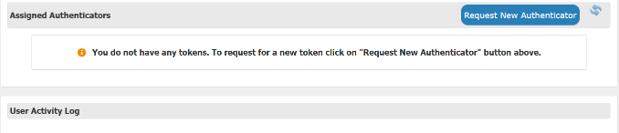
- After logging into Self Service via the One-Time Email PIN process, you can request a new RSA token. Press the Request New Authenticator button.
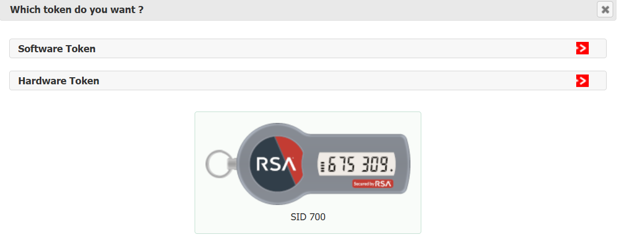
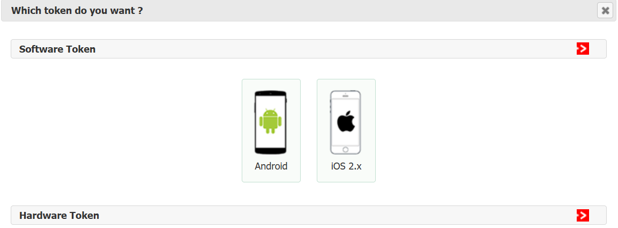
- For hard token, under the Hardware Token section, press within the Hardware Token line.
-
- Next, press within the image of the hard token (SID 700).
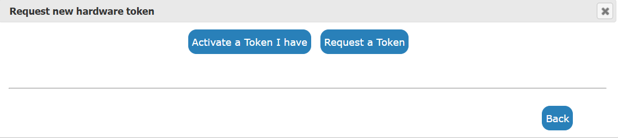
- Users requesting a hard token be shipped to them: select Request a Token.
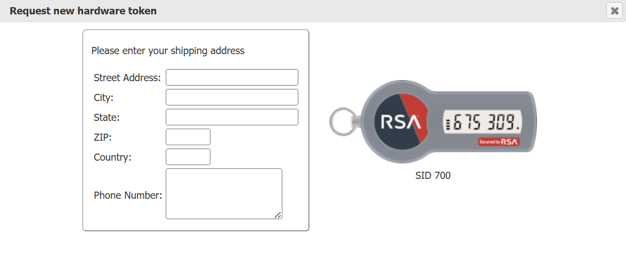
- Enter shipping information as requested on your computer screen. Press Submit.
-
- You will now see that you have a hard token assignment within Self Service. Please wait for token shipment to be completed before proceeding. Once you have received your hard token shipment, press Activate a Token I have.
-

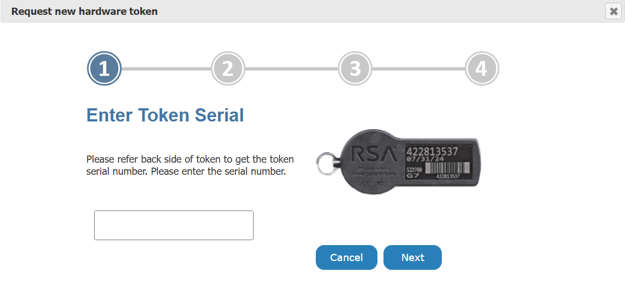
- Enter the token serial number, then press Next.
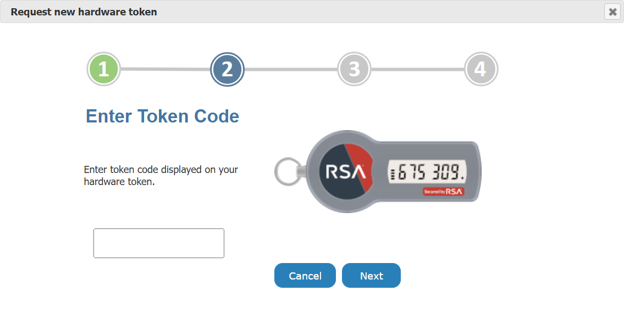
- Enter the token code displayed on your hard token, then press Next.
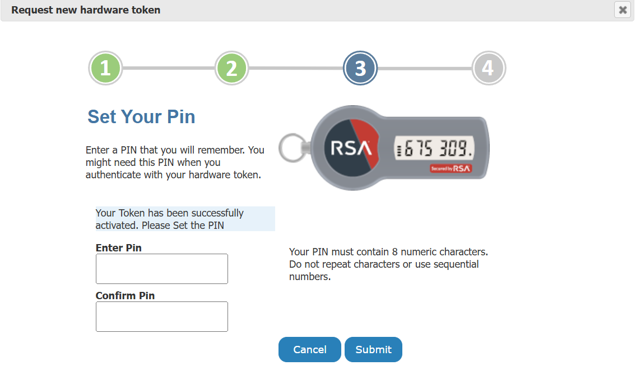
- You are prompted to set an 8-digit PIN. Note the PIN complexity requirements. Press Submit once PIN is entered and confirmed.
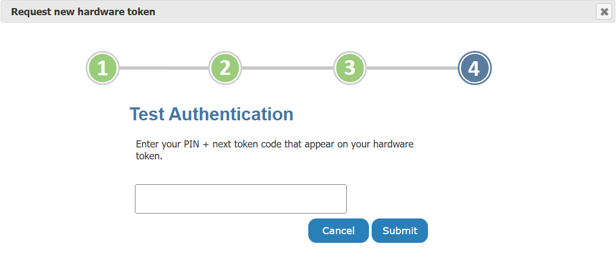
- Test authentication by entering your PIN (set in step 6) + next token code that appears on your hard token. Please do NOT include spaces. Press Submit once entered.
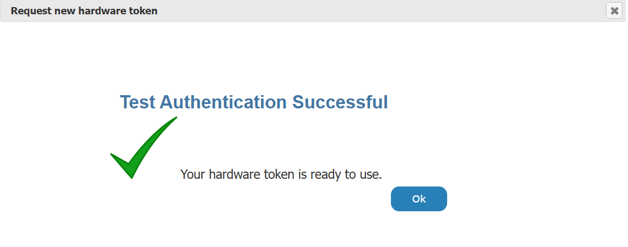
- When you have entered the correct code, you will receive Test Authentication Successful. Press OK.
- You will now see your activated hard token within your Self Service profile. PIN Status is SET and token is fully usable.
-
- One of the following criteria must be met for hard token shipment:
- A.) User not allowed to use mobile phone in the facility.
- B.) User does not have a smart phone (Apple or Android).
- C.) User right to say no, based on country and/or legal regulations.