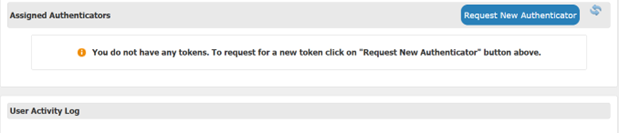
After logging into Self Service via the One-Time Email PIN process, you can request a new RSA token. Press the Request New Authentication button.
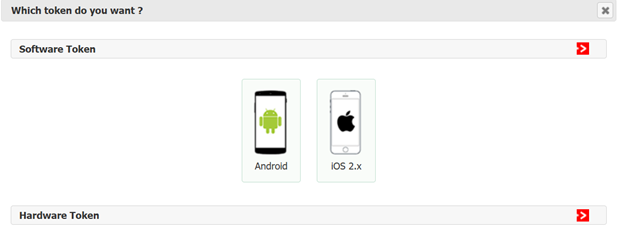
For soft token, under the Software Token section, select either Android or iOS as applicable.
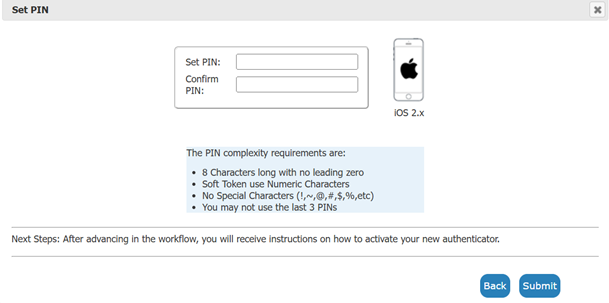
You are prompted to set an 8-digit PIN. Note the PIN complexity requirements. Press Submit once PIN is set and confirmed.
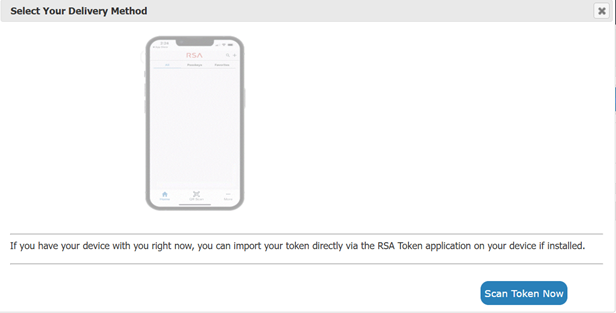
Press Scan Token Now
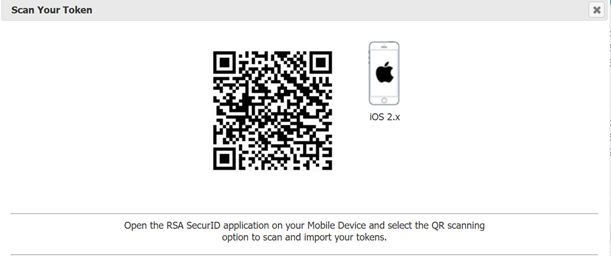
A QR Code will appear on the computer screen. You will be directed to open the RSA app on your mobile device.
Open the RSA app on your mobile device.
If you have not yet installed the RSA app for Android, instructions are HERE
If you have not yet installed the RSA app for iOS, instructions are HERE
If prompted for License Agreement, press Accept. For Anonymous Usage Data Collection, press Allow or Deny. At RSA Welcome screen, press Get Started .
NOTE: You may be prompted to allow camera permission to scan QR codes. Press Allow.
With the RSA app still open, point the camera at the QR code. The camera will scan the QR code and import the token.
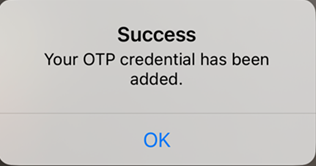
On your device, you will receive a success message. Press OK.
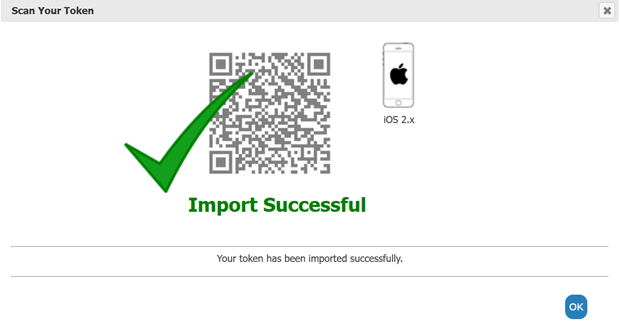
On your computer, you will see a message that the import was successful. OK.
It is critical to press OK on your computer, for token authentication to work.
After the token imports successfully and you have pressed OK on your computer, please test your token immediately to complete the process.
Do not skip this step. It is required to complete the activation.
Enter your PIN (created in step 3) into the RSA app and press Submit. Then on the computer screen, enter the 8-digit passcode from the app, into the Passcode field.
How to use soft token:
On the RSA app, enter your PIN in the Enter PIN field. It will generate an 8-number passcode.
On your computer, enter the passcode from the app, into the "Passcode" field on the computer.
Please do NOT include spaces.
Example: App shows: 1867 5309
Example: You will enter: 18675309
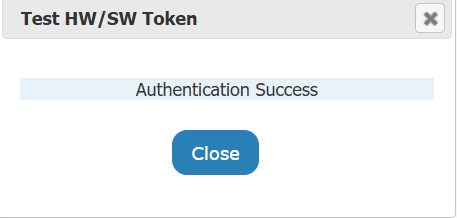
When you have entered the correct code, you will receive Authentication Success. Press Close.
You will now see your activated soft token within your Self Service profile. PIN Status is SET and token is fully usable.